A small-business network is not complete because the internet works and every laptop can join Wi-Fi. A reliable network must connect the right devices, separate traffic that should not mix, survive ordinary failures, support troubleshooting, and remain understandable to the person responsible for it.
Many offices build the network in reverse. They buy a router, add a switch when the ports run out, install an extender after Wi-Fi complaints, and create a guest password without confirming whether guests can reach business systems. The result may function today, but it has no deliberate architecture.
This guide explains how to plan and implement a practical small-business network from requirements through testing. It does not prescribe one brand or one universal design. The correct network depends on the building, users, applications, security risks, support model, budget, and cost of downtime.
What a complete small-business network includes
A typical business network may contain:
- An internet service and provider handoff
- A router or firewall that connects and controls networks
- Managed or unmanaged switches that provide wired connectivity
- Wireless access points positioned for coverage and capacity
- Structured cabling, patch panels, racks, and labeled wall ports
- Separate networks for employees, guests, connected devices, voice, servers, or management where justified
- DHCP, DNS, addressing, time, and other supporting services
- Uninterruptible power, configuration backups, monitoring, and documentation
The router, switch, and access point perform different functions. If those roles are unclear, start with Router vs. Switch vs. Access Point: What Each One Actually Does.
Step 1: Define what the business needs to keep working
Do not begin with equipment. Begin with operations. Identify the people, locations, devices, applications, and workflows the network must support.
Document:
- Number of employees, guests, rooms, floors, and locations
- Computers, phones, tablets, printers, cameras, access systems, televisions, sensors, and specialized equipment
- Cloud applications, local servers, file storage, payment systems, voice platforms, and remote access
- Wired and wireless requirements for each device
- Data sensitivity and trust level
- Expected growth during the useful life of the network
- Maximum tolerable internet or network outage
- Who will administer, monitor, document, and support the environment
For every important workflow, ask what happens if the internet, Wi-Fi, one switch, one access point, or the firewall fails. That answer determines whether the business needs spare equipment, failover connectivity, stronger warranties, redundant paths, or documented manual procedures.
The broader inventory and ownership process is covered in Small Business IT Infrastructure: What You Actually Need.
Step 2: Survey the physical space
A floor plan is part of the network design. Mark the internet entry point, network closet, work areas, conference rooms, public spaces, exterior areas, walls, ceilings, electrical panels, equipment rooms, and locations that need wired or wireless service.
Confirm:
- Where cables can legally and safely run
- Whether the cabling route crosses fire barriers or requires plenum-rated cable
- Where access points can be mounted away from obstructions
- Which devices require Power over Ethernet
- Whether the network equipment has ventilation, physical protection, and reliable power
- Whether future desks, cameras, phones, or access points need spare cable runs
Use qualified low-voltage professionals and applicable codes where required. A cable that works during a quick test can still be poorly terminated, improperly supported, exposed to interference, or unsuitable for the space.
Step 3: Choose the internet connection around business impact
Advertised download speed is not the only requirement. Evaluate upload capacity, latency, data limits, service-level commitments, support availability, installation lead time, modem or gateway limitations, public addressing, and the provider’s repair process.
A business that depends on cloud applications, voice, payment processing, remote work, or customer connectivity should document what happens during an outage. Options may include a second wired provider, cellular failover, temporary hotspots, or a manual operating procedure. A backup circuit is useful only if the firewall can detect failure, route traffic correctly, and recover without leaving applications in a broken state.
Test failover under controlled conditions. Confirm which applications work on the secondary connection, whether inbound services or VPNs are affected, and how staff know that the network is operating in a degraded state.
Step 4: Select the router or firewall
The router moves traffic between networks and toward the internet. The firewall applies policy to that traffic. Many small-business devices combine both functions, but capability varies substantially.
Evaluate the firewall based on:
- Real throughput with required security and VPN functions enabled
- Number and speed of interfaces
- Support for VLANs, multiple networks, and inter-network policy
- Primary and backup internet connections
- Remote-access requirements and multi-factor authentication support
- Logging, alerting, configuration backup, and change history
- Software-update process and support lifecycle
- Licensing or subscriptions required for important functions
Do not expose the administration interface directly to the internet. Change default credentials, use individual administrative accounts where available, restrict management access, enable multi-factor authentication when supported, update the software, and back up the configuration after verified changes.
A firewall is valuable because of its policy and maintenance, not because a box with that label is present. Read What a Firewall Actually Does—and What Small Businesses Should Configure before treating the default configuration as finished.
Step 5: Design the wired network
Wired Ethernet remains the appropriate foundation for fixed devices that need consistent performance, predictable latency, power delivery, or easier troubleshooting. That commonly includes access points, desktop computers, printers, phones, cameras, servers, and building systems.
Count the required switch ports, then add reasonable capacity for growth and maintenance. Include uplinks, access points, phones, cameras, printers, servers, management devices, and spare ports. Verify the speed of ordinary ports and uplinks so one slow connection does not become the bottleneck for an otherwise faster design.
Plan Power over Ethernet
Power over Ethernet can power access points, phones, cameras, and other devices through the network cable. The switch must support both the required PoE standard and the total power budget.
Do not count only the number of PoE ports. Add the maximum or expected power requirement of connected devices, allow operating margin, and confirm whether all ports can deliver the required power simultaneously. Higher-performance access points or cameras may negotiate reduced functionality when the switch cannot provide enough power.
Decide whether the switch must be managed
An unmanaged switch may be appropriate for one simple, isolated use. A network that requires VLANs, port monitoring, link aggregation, loop protection, PoE administration, configuration backup, or better troubleshooting generally needs managed switching.
The tradeoff is administration. A managed switch with no owner, documentation, or configuration backup can become a failure point. Use Managed vs. Unmanaged Switch: Which One Does Your Business Need? to make the decision based on requirements rather than appearance.
Step 6: Design Wi-Fi for coverage and capacity
Do not place one access point beside the modem and add extenders after complaints. Wireless design should consider floor layout, construction materials, interference, number of devices, applications, client capabilities, channel use, and wired backhaul.
Access points normally perform best when mounted in appropriate open locations and connected by Ethernet. Multiple access points can improve coverage and capacity, but adding radios without a channel and power plan can increase interference.
Create only the wireless networks the business can explain and maintain. A practical design might include:
- Business: approved employee devices
- Guest: internet-only access for visitors and personal devices
- Devices: selected connected equipment with restricted communication
A different wireless name does not prove isolation. Confirm that each SSID maps to the intended network and that firewall rules enforce the boundary. For radio and performance troubleshooting, see Why Business Wi-Fi Fails—and How to Fix It.
Step 7: Create a simple addressing plan
Every network needs an understandable addressing plan. Record each subnet, gateway, DHCP range, reserved address, DNS service, VLAN assignment, and purpose.
Use DHCP for ordinary client devices unless an application has a documented reason for a fixed address. Infrastructure such as firewalls, switches, access points, servers, controllers, or printers may require stable addressing. Use reservations or documented static assignments without placing them inside an uncontrolled DHCP range.
Avoid copying random addressing schemes from another business. Choose private address ranges that leave room for the required networks and reduce conflicts with remote-access or site-to-site connections. Consistency matters more than clever numbering.
Step 8: Separate devices by trust and function
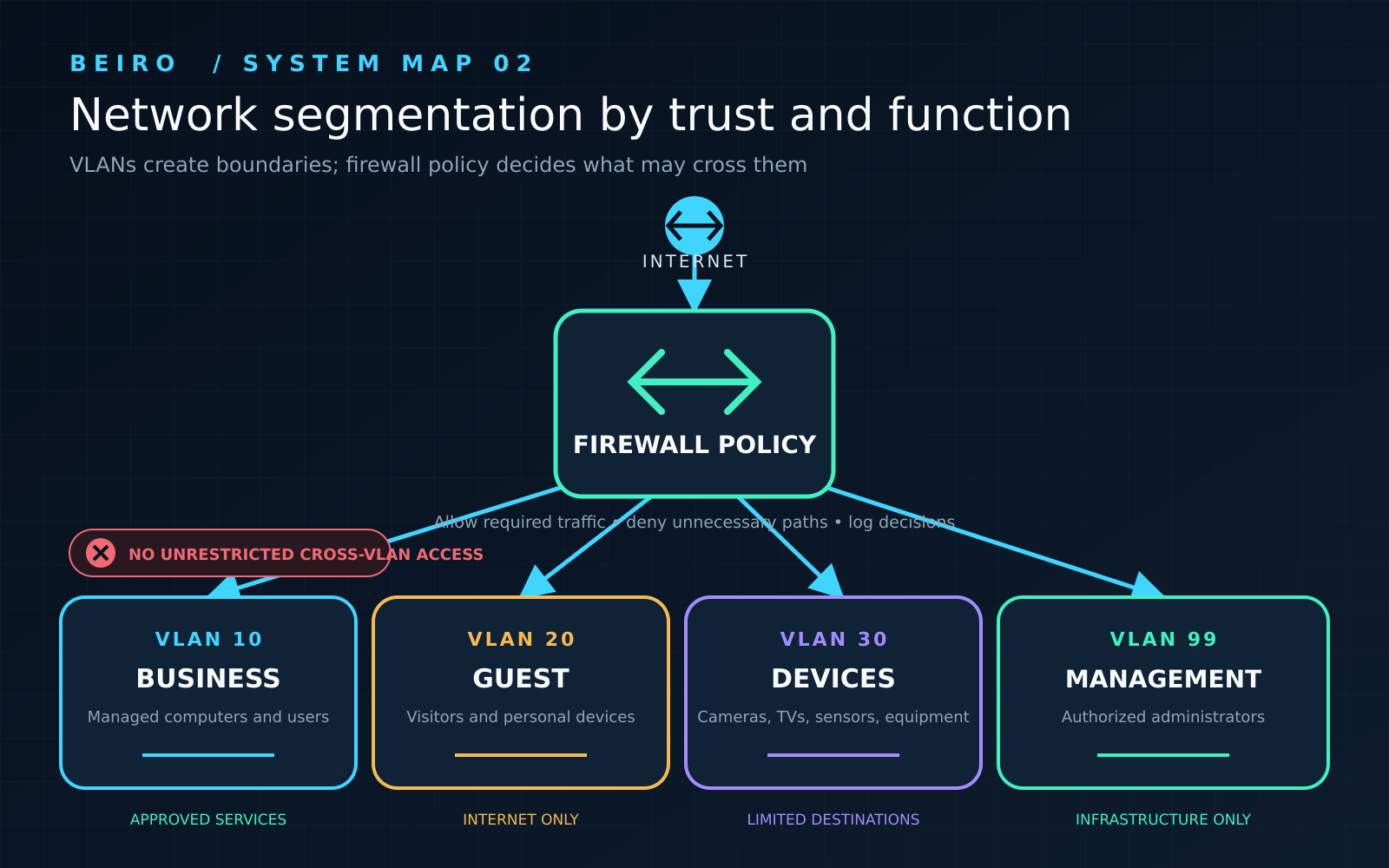
A guest phone, employee laptop, camera, payment terminal, server, and firewall administration interface do not need identical access. Network segmentation creates boundaries so policy can distinguish them.
Possible zones include:
- Managed business devices
- Guest and personal devices
- Cameras and connected equipment
- Voice systems
- Servers or critical applications
- Infrastructure management
Do not create a VLAN for every device type merely to make the design look advanced. Each segment adds addressing, DHCP, routing, firewall, wireless, monitoring, testing, and documentation requirements. Use the smallest design that enforces meaningful trust boundaries.
The VLAN creates a logical boundary; the firewall policy determines what may cross it. If every network can communicate freely with every other network, the design adds complexity without meaningful isolation. Read VLANs for Small Businesses: When Network Segmentation Is Worth It for the implementation details.
Step 9: Write traffic policy before firewall rules
Describe required communication in plain language before configuring ports and addresses. For example:
- Guest devices may reach the internet but not private business networks.
- Employee devices may reach approved cloud services, printers, and business applications.
- Cameras may reach their recorder, time service, and required management platform.
- Only authorized administrative devices may manage the firewall, switches, and access points.
- Remote support may reach only documented systems through an approved method.
Translate those statements into source, destination, service, identity, schedule, logging, and owner. Start from required communication and deny unnecessary paths. Test business workflows before enforcing a restrictive change in production.
Step 10: Protect the physical infrastructure
Network security is not only configuration. Place the modem, firewall, switches, patch panels, controllers, and backup power in a location protected from casual access, water, heat, dust, impact, and cable disturbance.
Use an appropriately sized uninterruptible power supply for critical network equipment. A UPS can bridge short interruptions and allow controlled shutdown, but it is not unlimited backup power. Record expected runtime, battery age, replacement date, connected load, and test schedule.
Label cables, patch-panel ports, wall jacks, switch ports, power supplies, and equipment. Good labeling shortens outages and reduces the chance that someone disconnects the wrong device during troubleshooting.
Step 11: Secure administration and remote access
Network equipment should use supported software, unique credentials, restricted administration, accurate time, and protected configuration backups. Disable unused management services and do not administer core infrastructure from guest or ordinary untrusted devices.
Remote access should use an approved VPN or another controlled method, individual identities, multi-factor authentication where supported, logging, and limited privileges. Do not leave a vendor’s remote tool broadly connected to the entire network because it is convenient.
Document who owns the domain, internet account, firewall, wireless platform, switches, licenses, certificates, and recovery credentials. The business should not lose control of its network when an employee or provider leaves.
Step 12: Test the network as a system
A successful speed test is not an acceptance test. Verify the network from representative devices, rooms, wired ports, wireless networks, and user roles.
Test:
- Internet access, DNS, DHCP, and accurate time
- Required cloud and local applications
- Printers, scanners, phones, cameras, and specialized devices
- Wi-Fi coverage, capacity, roaming, and performance in real work areas
- Guest isolation and prohibited internal destinations
- Communication permitted between business segments
- Remote access and vendor support
- Primary-to-backup internet failover and recovery
- UPS behavior during a controlled power interruption
- Monitoring, alerts, logs, and configuration restoration
Record the result, date, tester, expected behavior, and unresolved issue. Retest after meaningful firewall, switch, access-point, application, cabling, provider, or building changes.
Step 13: Document the finished network
Create a network diagram showing the internet connection, firewall, switches, access points, major device groups, servers, remote connections, and third-party paths. The diagram does not need decorative detail; it must help someone understand traffic and troubleshoot an outage.
Maintain:
- Equipment inventory with models, serial numbers, locations, warranties, and support dates
- IP, VLAN, DHCP, DNS, wireless, and firewall documentation
- Cable and switch-port maps
- Internet provider, circuit, account, and support information
- Administrative ownership and emergency contacts
- Configuration backups and restoration instructions
- Vendor access and dependency records
- Change history, test results, and known limitations
Store a protected copy somewhere available during a network outage. Documentation trapped only inside an unavailable server cannot support recovery.
Step 14: Establish routine maintenance
A network is not finished after installation. Assign responsibility and a schedule for:
- Firmware and security updates
- Configuration backups
- Alert and log review
- Internet, switch, access-point, and UPS health
- Account and remote-access review
- License, certificate, warranty, and subscription renewal
- Capacity and Wi-Fi performance review
- Recovery and failover testing
- Inventory, diagram, and documentation updates
Monitoring should answer useful questions: Is the internet circuit failing? Is an access point offline? Is a switch port producing errors? Is a UPS battery degraded? Did a configuration change? Collecting data without an owner or response process does not improve reliability.
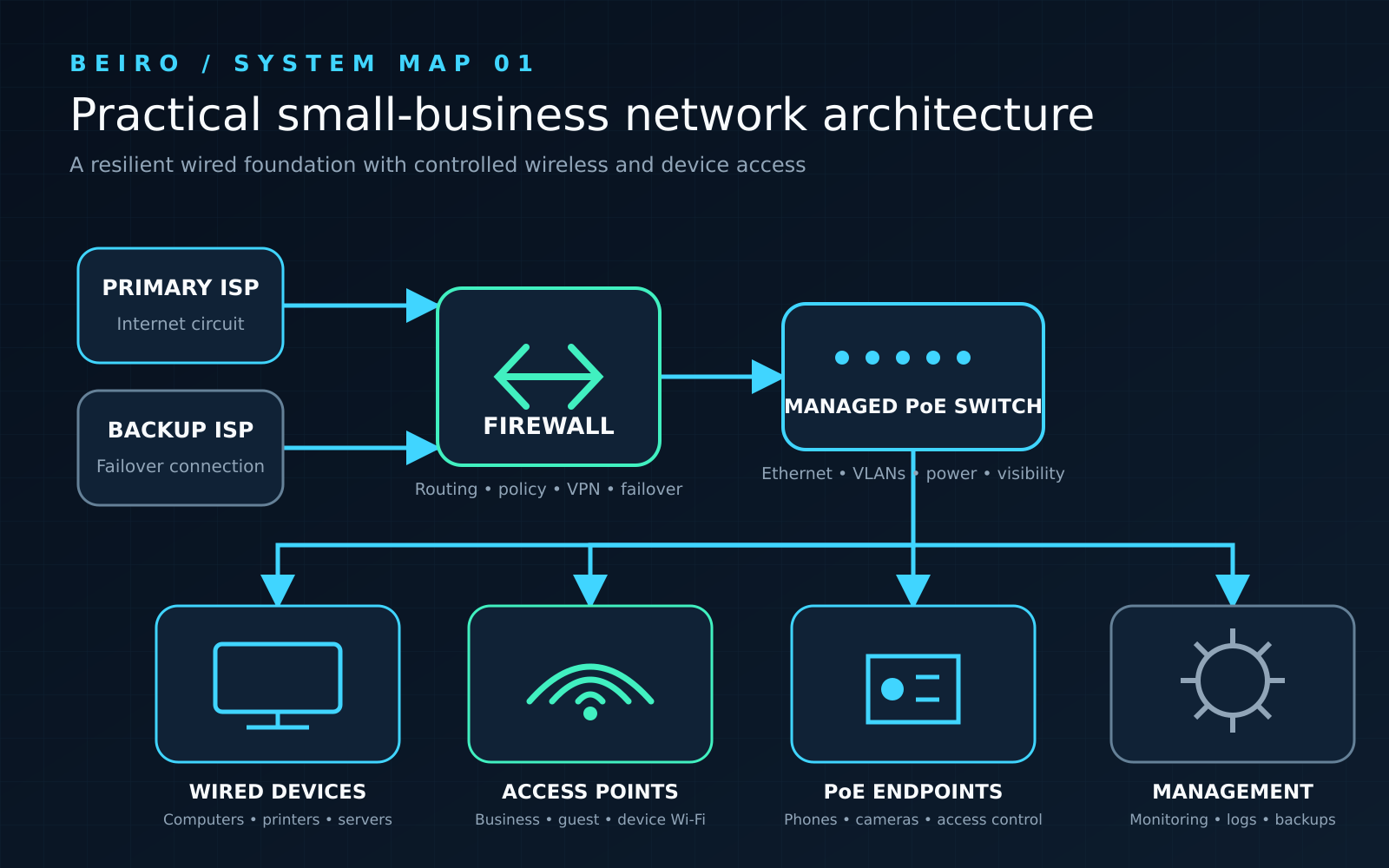
A practical small-office design
A growing office might use the following architecture:
- The provider handoff connects to a business firewall.
- The firewall connects to a managed PoE switch.
- The switch powers wired access points, phones, cameras, and other approved devices.
- Employee, guest, connected-device, and management traffic use separate networks where justified.
- The firewall routes between those networks and permits only required communication.
- Fixed workstations, printers, and infrastructure use wired connections where practical.
- Critical network equipment uses protected power and documented configuration backups.
- Monitoring reports outages, important changes, and equipment health to an accountable owner.
This is a pattern, not a shopping list. A three-person office may need a simpler version. A multi-location business, regulated environment, warehouse, public venue, or organization with local servers may need greater separation, redundancy, and professional design.
Common small-business network mistakes
- Buying equipment before defining requirements. The network becomes a collection of products rather than a system.
- Using Wi-Fi for every device. Fixed devices lose the predictability and troubleshooting benefits of wired connectivity.
- Adding extenders instead of fixing the design. The underlying problem may be placement, interference, capacity, cabling, or configuration.
- Calling a second SSID a guest network. Without a separate network and firewall policy, guests may still reach business resources.
- Creating VLANs without enforcement. Permitting all traffic between segments defeats the purpose.
- Ignoring the PoE budget. The switch may not power every connected device at full capability.
- Leaving default credentials or broad remote management. Convenience exposes the infrastructure itself.
- Failing to label cables and ports. Simple maintenance becomes risky and slow.
- Having no configuration backups. Replacement hardware cannot restore undocumented policy.
- Assigning no owner. Updates, alerts, renewals, and documentation eventually stop.
Small-business network setup checklist
- Document users, devices, applications, locations, data, growth, and downtime requirements.
- Survey the building and design cabling and access-point locations.
- Select internet service and decide whether failover is justified.
- Size the firewall for actual features and throughput.
- Count switch ports, uplink capacity, and PoE power requirements.
- Design Wi-Fi for the space, device count, and applications.
- Create a simple IP, DHCP, DNS, and VLAN plan.
- Separate guests and other meaningful trust zones.
- Write and test firewall policy.
- Protect equipment, power, administration, and remote access.
- Test workflows, prohibited paths, failover, alerts, and recovery.
- Save configurations and complete the diagram and inventory.
- Assign ongoing maintenance to a named owner or provider.
The bottom line
A strong small-business network is not the most expensive or complicated network. It is the smallest architecture that reliably supports the business, enforces meaningful boundaries, can be diagnosed when something fails, and can be maintained by the people responsible for it.
Start with operations and risk. Build a wired foundation, design Wi-Fi deliberately, separate traffic where the distinction matters, protect administration, test the complete system, and document what was built. Equipment should follow that design—not replace it.
Once the network is operating, use the Essential Cybersecurity Checklist for Small Businesses and Small Business Backups: A Practical Plan for Recovering Your Data to strengthen the systems that depend on it.